🔐 7 Password Manager Mistakes That Expose All Your Logins (And How to Fix Them)
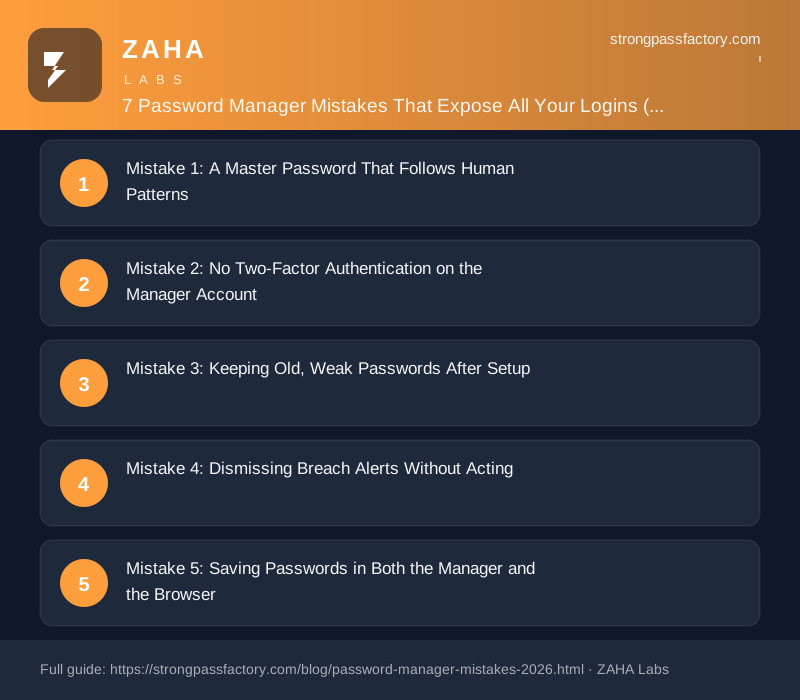
On this page
- Mistake 1: Weak Master Password
- Mistake 2: No 2FA on the Manager
- Mistake 3: Keeping Old Weak Passwords
- Mistake 4: Ignoring Breach Alerts
- Mistake 5: Dual-Storing in the Browser
- Mistake 6: No Recovery Plan
- Mistake 7: Sharing via Insecure Channels
- The Right Setup Closes All Seven Gaps
- Frequently Asked Questions
Verizon's 2025 Data Breach Investigations Report found that 68% of breaches still involve a human element, with stolen or weak credentials as the number-one attack vector. That number has barely moved since password managers became mainstream. Using a password manager incorrectly gives you false confidence without actual security — and these seven mistakes explain the gap.
If you already have a password manager installed and still feel uneasy about your accounts, one of these is almost certainly why.
Mistake 1: A Master Password That Follows Human Patterns
Your master password is the single key to every credential you own. If it is guessable, attackers who breach your password manager's servers — as happened with LastPass in December 2022 — can brute-force your encrypted vault offline at billions of guesses per second on a modern GPU cluster.
The mistake is treating the master password like a regular website password: something memorable, based on a meaningful word, name, or date. According to Specops Software's 2024 Breached Password Report, 88% of passwords cracked in real attacks were 12 characters or fewer, and the majority followed predictable patterns that any trained model can generate in seconds.
"The master password is the one password worth memorising — and that memorability is exactly the problem. Every pattern that makes it memorable also makes it guessable." — Roger Grimes, cybersecurity researcher, KnowBe4
The fix: Use a random passphrase of five or more unrelated words — a diceware phrase like correct-battery-staple-dragon-lamp achieves 65+ bits of entropy while remaining writable. Alternatively, build a mnemonic sentence into a string like I-walked-7-dogs-in-RAIN-2019! — long, uncommon, and memorable only to you. Avoid anything with a real name, year, or keyboard pattern.
Mistake 2: No Two-Factor Authentication on the Manager Account
A password manager account is the highest-value login you have. Yet many users enable 2FA on streaming services and social media but skip it on the vault itself. If an attacker steals your master password through phishing or a keylogger, 2FA is the only barrier between them and every account you own.
Most major password managers — NordPass, 1Password, Bitwarden — support TOTP authenticator codes (Google Authenticator, Authy, Aegis) as a second factor. Some also support hardware security keys for the strongest possible protection.
The fix: Go to your manager's security settings today and enable authenticator-app-based 2FA. SMS 2FA is acceptable but is vulnerable to SIM-swapping — use an authenticator app where possible, and store your backup codes in a physically separate location from your phone.
Mistake 3: Keeping Old, Weak Passwords After Setup
The most common post-setup mistake: people install a password manager, import their existing logins, and never update them. Every imported password that was human-chosen and under 15 characters is still vulnerable — being stored in a manager does not strengthen it.
Every major password manager includes a built-in security audit that flags reused, weak, and compromised passwords directly inside your vault. Most users never open it.
| Password type in vault | Why it is still dangerous | Fix |
|---|---|---|
| Reused across sites | One breach exposes every site using that password | Generate a unique replacement |
| Under 12 characters | Crackable by AI tools in hours or days | Replace with a 20-character random string |
| Dictionary-based (e.g. P@ssw0rd) | First target in credential-stuffing attacks | Replace immediately |
| Same as your master password | Single point of total failure | The master password must never be reused |
The fix: Open your manager's security audit (NordPass calls it Password Health, 1Password calls it Watchtower, Bitwarden calls it Vault Health). Sort by weakest first. Start with email, banking, and any account linked to payment information — these are the highest-value targets in any credential-stuffing campaign.
Mistake 4: Dismissing Breach Alerts Without Acting
Every major password manager monitors known data breaches and alerts you when a stored account appears in one. According to Have I Been Pwned, as of 2026 there are over 14 billion unique compromised credential pairs in the public breach corpus. The statistical likelihood that an account you created before 2022 has appeared in at least one breach is not trivial.
Breach alerts frequently land in a notification tray that users dismiss without acting. A dismissed breach alert is the digital equivalent of disabling a smoke alarm because it is inconvenient.
The fix: Treat every breach alert as an emergency for that specific account. Change the password immediately using a freshly generated random string, review the account for unauthorised activity, and revoke any active sessions. If the breached site has no 2FA, enabling it should be part of the password reset process.
Mistake 5: Saving Passwords in Both the Manager and the Browser
When your browser prompts "Would you like to save this password?" and you click yes — after already storing it in your manager — you have created a second, weaker copy. Browser credential stores use OS-level encryption (Windows DPAPI or macOS Keychain) with no master password requirement by default. Anyone with brief physical or remote access to your unlocked device can extract all browser-saved passwords in seconds using freely available forensic tools.
"Browser password stores are convenience features, not security features. Their threat model is UX friction reduction, not protection from a motivated attacker with session access." — Florian Roth, cybersecurity researcher
The fix: Disable the browser's password manager entirely. In Chrome: Settings → Autofill → Passwords → turn off "Offer to save passwords." In Firefox: Settings → Privacy & Security → uncheck "Ask to save logins." Your dedicated password manager's browser extension handles autofill without creating a secondary unprotected store.
Mistake 6: No Emergency Access or Recovery Plan
What happens if you forget your master password, lose your 2FA device, or are physically incapacitated? Without a documented recovery plan, your entire digital life becomes inaccessible. Password manager support queues routinely handle cases from users who lost both their master password and their backup codes simultaneously.
Most enterprise and family-tier managers offer an emergency access feature: you designate a trusted contact who can request access after a waiting period you control. If you do not respond within that window, they gain read access to your vault. NordPass supports this on its Premium plan.
The fix: Do three things today. First, print your manager's emergency kit — the master password hint and backup recovery codes — and store it physically in a secure location, not digitally. Second, designate an emergency access contact in your manager's settings if the feature is available. Third, keep your backup 2FA recovery codes on paper, separate from your primary device, so that losing your phone does not lock you out permanently.
Mistake 7: Sharing Passwords via Screenshots, Chat, or Email
Shared streaming accounts, family logins, work credentials — password sharing is normal. What is not safe is texting a password, emailing it, or screenshotting it. Screenshots live in cloud photo rolls. Chat logs are indefinitely archived. Email is unencrypted in transit and at rest in most providers.
A password sent via iMessage, WhatsApp, or Slack is accessible to anyone who can read those archives — the recipient's device, cloud backups, future platform breaches, or law enforcement requests. That single act of convenience creates a permanent, unencrypted record of a credential you thought was private.
The fix: Use your password manager's built-in secure sharing feature. NordPass shares specific vault items with another NordPass user via end-to-end encrypted transfer — the password never appears as readable text in any message or log. The recipient sees it only inside their vault. For families, NordPass's Families plan covers six users with shared folder access under a single subscription, replacing every "what's the Netflix password?" text message with an encrypted vault entry.
The Right Setup Closes All Seven Gaps
Every one of these mistakes is fixable inside a well-configured password manager. The self-audit checklist:
- ✅ Master password is a 5-word diceware phrase or 20+ character random string (65+ bits of entropy)
- ✅ TOTP 2FA is active on the manager account itself
- ✅ Security audit completed — all weak and reused passwords replaced
- ✅ Breach alerts are actioned promptly, not dismissed
- ✅ Browser's built-in password save feature is disabled
- ✅ Emergency kit printed and stored physically, separate from primary device
- ✅ Passwords shared only via the manager's encrypted share feature
NordPass addresses all seven with its Password Health audit, real-time Data Breach Scanner, TOTP and hardware key (YubiKey-compatible) 2FA support, encrypted secure sharing, emergency access, and XChaCha20 zero-knowledge encryption. Even if NordPass's servers were breached, your vault contents would remain inaccessible without your master password.
Frequently Asked Questions
What are the most common password manager mistakes?
The seven most common mistakes are: using a weak master password, skipping 2FA on the manager account, keeping old weak passwords unchanged after setup, ignoring breach alerts, saving passwords in both the manager and the browser, having no emergency access or recovery plan, and sharing passwords via insecure channels like screenshots or chat.
Can a password manager be hacked?
Password manager servers can be breached — LastPass had encrypted vaults stolen in December 2022. However, those vaults remain protected by your master password's encryption. A strong master password that avoids dictionary words and predictable patterns cannot be cracked from the encrypted data in any realistic timeframe. The bigger practical risk is user error, not server breach.
Should I use my browser's built-in password manager?
Browser password managers are significantly better than no password manager — they generate unique passwords and handle autofill. However, they lack cross-platform sync, breach monitoring across your full vault, secure sharing, emergency access, and password health auditing. For any account that matters financially or professionally, a dedicated manager provides materially stronger protection.
How do I know if my password manager is set up correctly?
Check five things: (1) Your master password is a 20+ character diceware phrase or random string. (2) TOTP 2FA is active on the manager account. (3) You have run the built-in security audit and replaced all flagged passwords. (4) Your browser's built-in password save is disabled. (5) You have a physical emergency kit stored separately from your primary device. If all five are true, your setup is sound.